Payment schedules and recording payments
Set the contract total, discounts and due dates, record each payment as it comes in, and send invoices and receipts.
The Payments tab in Business Proposal and billing is your ledger for one event. Tablescape does not take card payments or hold money. You collect through your usual payment processor or method, then record each payment here.
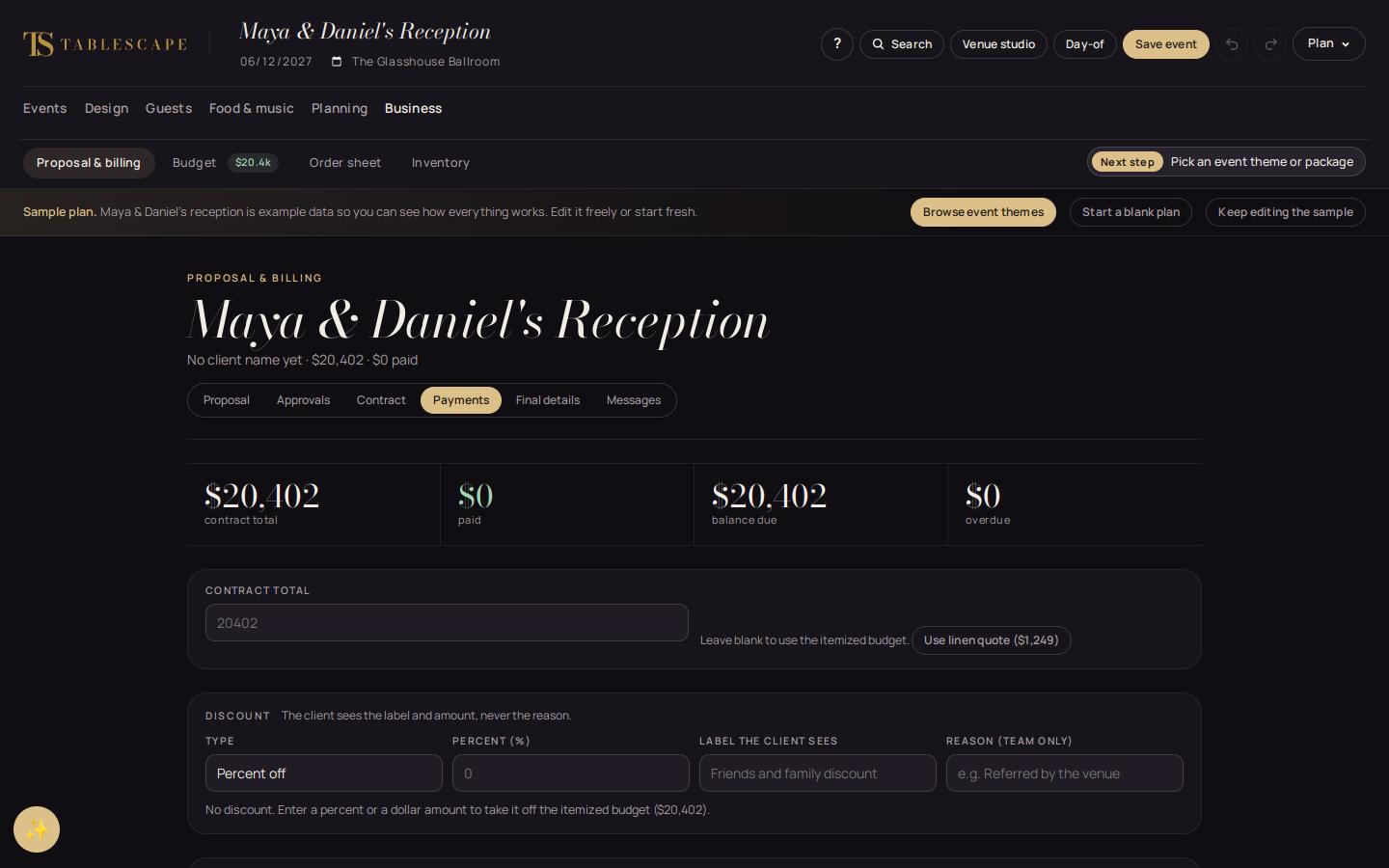
The total
The contract total comes from the itemized budget. Enter a number in Contract total only if you want to override it. A discount can be a percent or a dollar amount; the client sees its label and amount, never the reason you wrote for your team.
The schedule
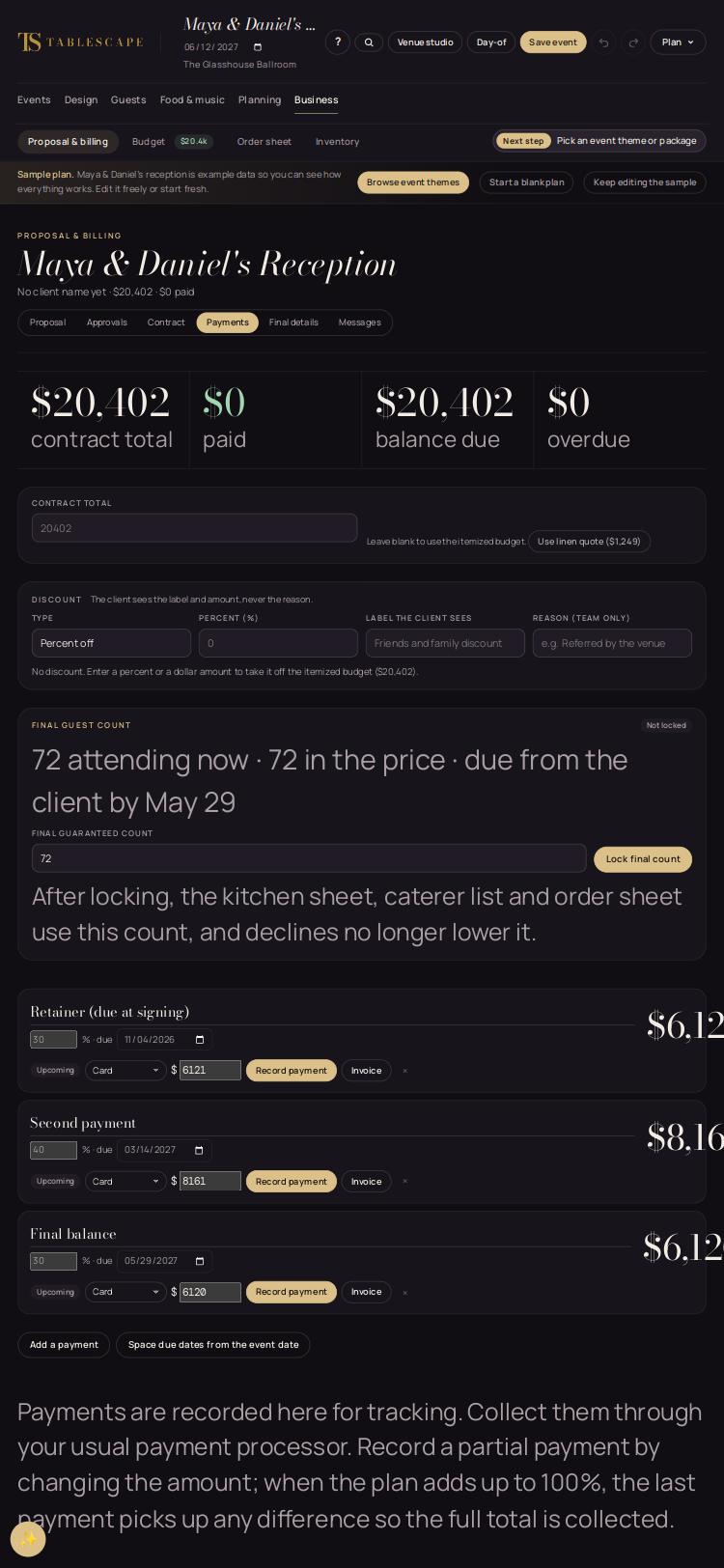
A new event starts with a retainer at signing, a second payment and a final balance. Change the percent and due date of each, add a payment, or press Space due dates from the event date. When the plan adds up to 100%, the last payment picks up any difference so the full total is collected.
Record a payment
- On the payment, choose how it was paid: card, bank transfer, check, cash, Zelle or Venmo.
- For a partial payment, change the amount first.
- Press Record payment.
Each payment has an Invoice button while it is open and a Receipt once it is paid, in English or Spanish. Balances and overdue payments show on the event, in Follow-ups and in the money owed across all events under Reports.
Tip. To let clients pay you online, add your own payment links. See Show clients how to pay.