Day-of mode and staff links
Give your crew a phone screen for the night with tasks, check-in and vendor arrivals, by role, in English or Spanish, even with bad signal.
Day-of mode is the screen your team uses during the event. Open it with Day-of in the top bar, or send a staff link that opens it on any phone with no sign-in.
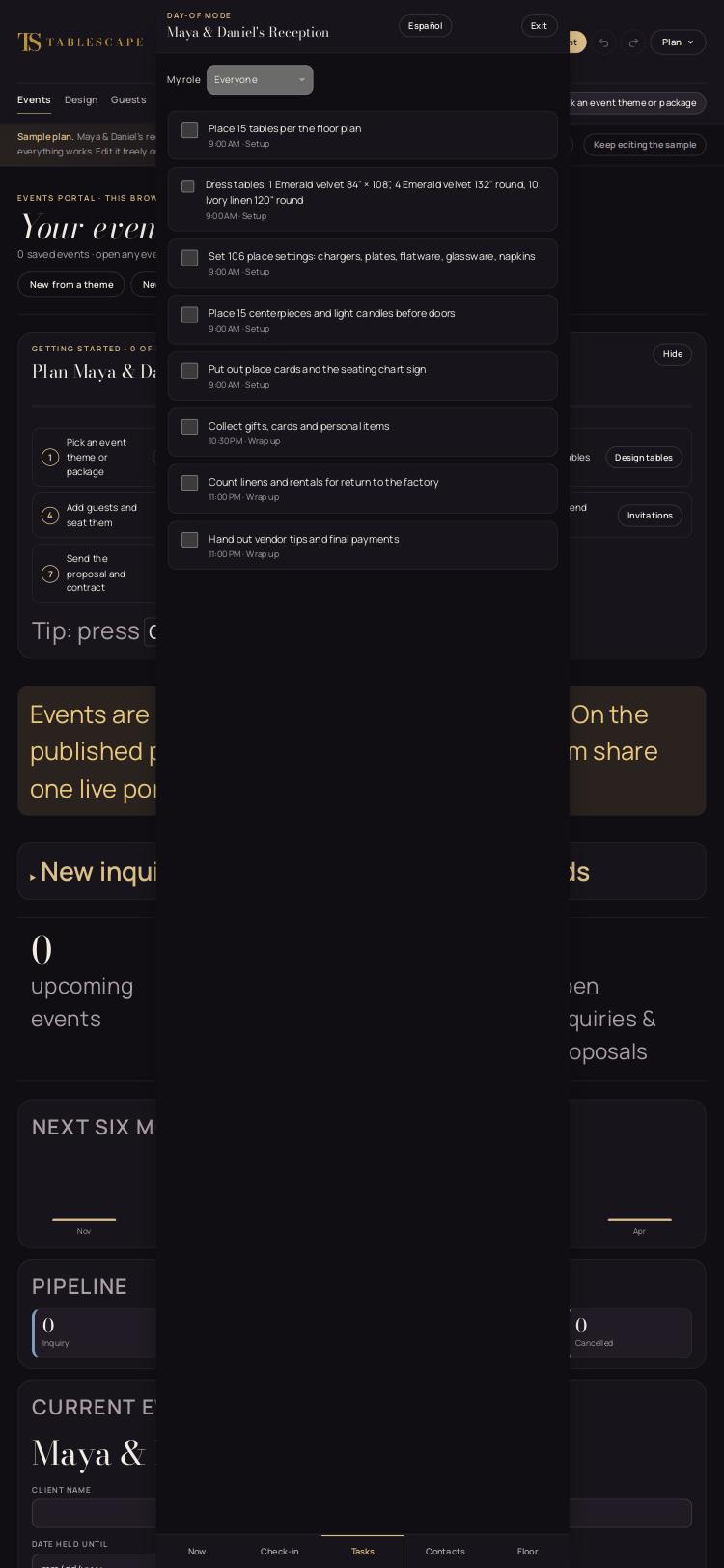
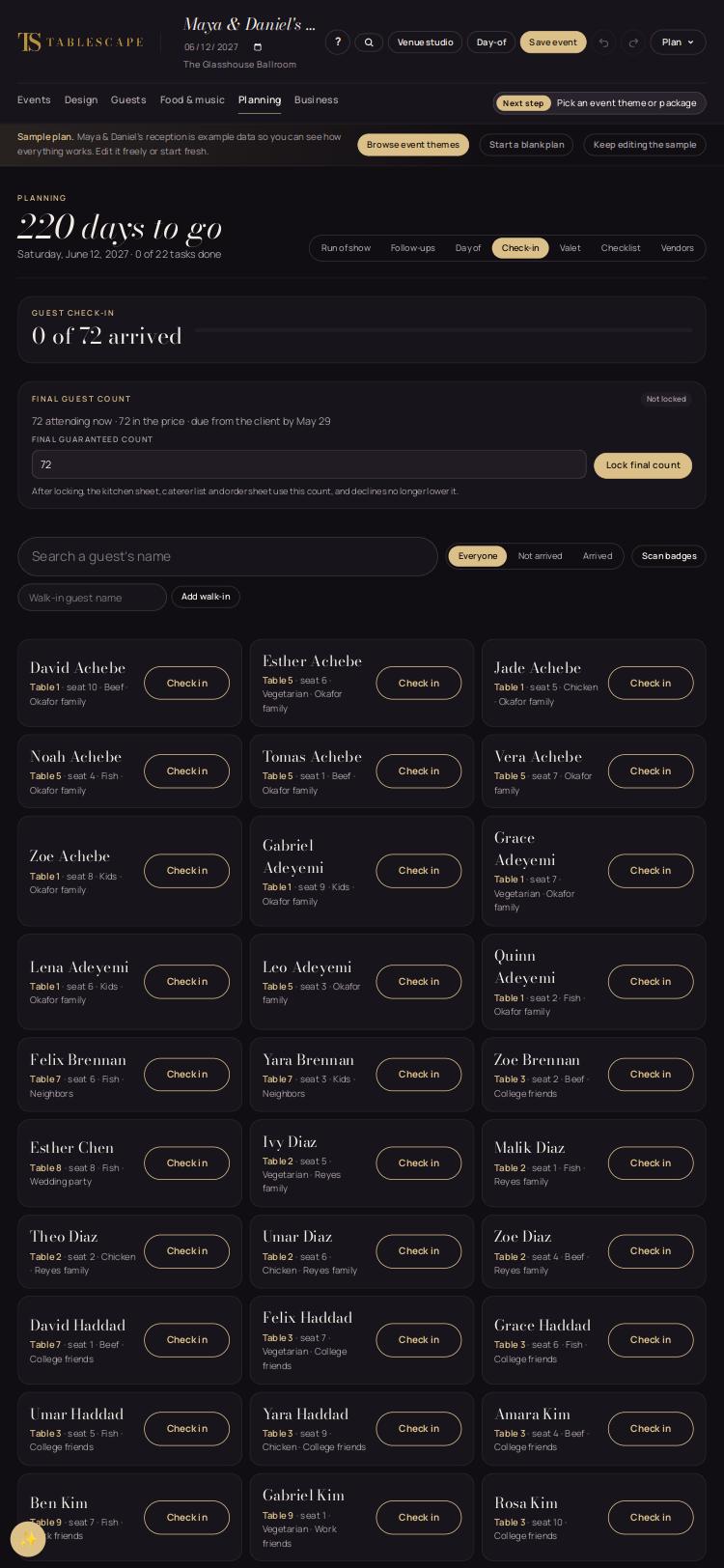
What staff see
- Walk through the day: what is happening now and what is up next, with Running late? buttons that shift the times by 5, 10 or 15 minutes.
- Tasks, guest check-in, vendor arrivals and "came anyway" for guests who declined but showed up.
- A role picker: Everyone, Setup crew, Kitchen and service, Bar, or DJ and AV. Each role sees its own tasks. The phone remembers the choice.
- An Español / English button, also remembered on that phone.
Send a staff link
- Save the event.
- Open Day-of and press Copy staff link.
- Text it to your crew. It opens in the phone's browser; there is no app and no account.
A staff link shows a trimmed copy of the event: no guest contact details, money, client details, payments, pay rates or seating rules. It stops working 7 days after the event.
When the signal drops
Changes stay on the phone until they can be sent, so nothing is lost on a reload or in a basement kitchen. They go out in batches and show on the other staff phones within about 15 seconds. A phone with no signal opens Day-of from its saved copy and says when it was last updated.
Good to know. Day-of crew under Events, Staff and company are names for schedules and call times. They don't get a sign-in; the staff link is how they reach the event.