Log inquiries and follow up
Log a call or message as a new inquiry, share your lead form, record why leads were lost and let Follow-ups tell you who to chase.
Log an inquiry
On the Events page, press New inquiry to log a phone call or message in seconds. Choose the lead source (phone call, website, Instagram, Facebook, referral, walk-in, bridal or trade show, repeat client or other) so Reports can show where your bookings come from.
Your lead form
Your company has its own inquiry page. Use Copy lead form link and put the link on your website and social profiles. Each form that comes in lands as a new inquiry with the visitor's name, email, phone and notes. The form shows a short notice about how their details are used.
Follow-ups
Planning Follow-ups works out what needs your attention from payments, RSVPs, the final guest count, the agreement, approvals, tasks, vendor bookings and balances, week-of confirmations, linen returns and the after-event wrap-up. Each item has Open, Snooze 3 days and Done.
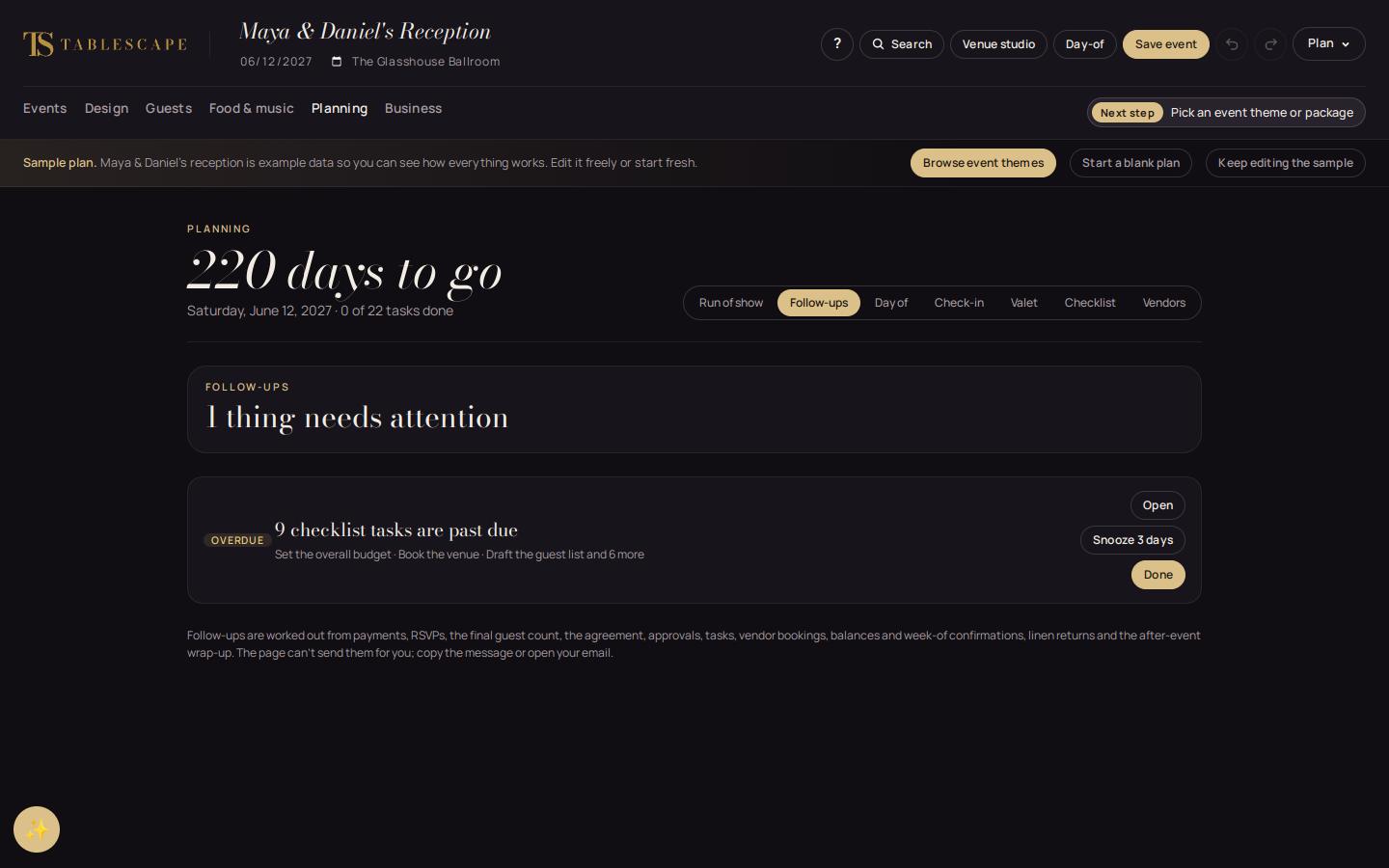
Follow-ups never send messages on their own. Copy the message or open your email from the item. Use Mark replied on a lead once you have answered, and record why a lead was lost so the reason shows in Reports.
Reviews on your website
When a client sends feedback after the event, you can approve their quote for your inquiry page. Your company also has a reviews page you can put on your own site with Copy embed code.
Good to know. Each person picks their own email alerts under Email alerts in Events Staff and company. With New website inquiries ticked, each new inquiry comes to your sign-in email with the visitor's details, and you can reply to that email to answer them. Owners and admins get these unless they turn them off; view-only members don't get email alerts.